LM Studio
A free program that downloads language models with open weights and runs them on your own laptop, without the internet; its developer mode shows the settings that decide how a model writes its answer.
What you will learn
This page introduces LM Studio, the program in which you run a language model on your own laptop, and afterwards you can:
- install LM Studio, download a model and chat with it without a connection to the internet
- switch on the developer mode under Settings → Developer, so that the settings of a model appear
- find temperature, response length and context overflow under Settings, and top k, top p and min p under Sampling
- set the context length of a model and find its file on your disk
LM Studio is a free program that downloads language models with open weights and runs them on your own laptop. Once a model is on your disk, it answers without a connection to the internet, and nothing you type leaves your computer. LM Studio runs on Windows, macOS and Linux and may be used free of charge at university and at work. The experiment An AI on your laptop works with it, and what a model file is and why its size matters is explained in Open models.
The screenshots on this page show LM Studio 0.4.26 on Windows; other versions may look slightly different.
Setting up
- Install LM Studio from its page for developers. A laptop with 8 GB of memory is enough for the small models of the experiment. The main page lmstudio.ai offers Bionic first, an agent of the same maker for documents, code and computer control, which is a different program; the one you need is called LM Studio.
- Download a model under Model Search in the bar on the left: search
for its name, such as
google/gemma-3-1b, and start the download. Models are large files, so download them at home and not in the lecture room. - Chat with it under Chat: choose the model in the model picker, wait until it is loaded and type your question into the box at the bottom.
Switch on the developer mode
After installing, LM Studio starts in a simple mode that shows only the chat and chooses every setting of the model by itself. The settings that decide how the model picks its next token, such as the temperature, top k and top p, stay hidden until you switch on the developer mode. The experiments with these settings only work once it is on.
You can tell that it is off by the panel on the right: under Model Parameters it shows only System Prompt, Custom Fields and Reasoning. To switch it on:
- Open the settings with the gear at the bottom left of the window, or with Ctrl + , (on a Mac Cmd + ,).
- Choose Developer in the list on the left and set Developer mode to ON.
- Close the settings. In the panel on the right, the sections Settings and Sampling now appear below Reasoning.
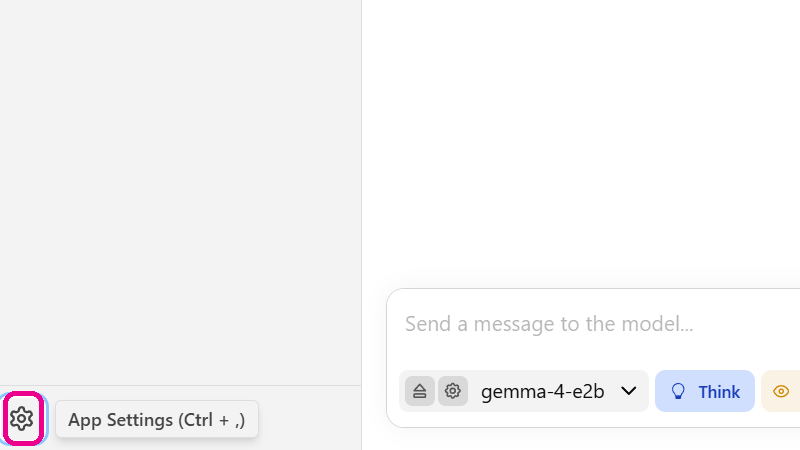
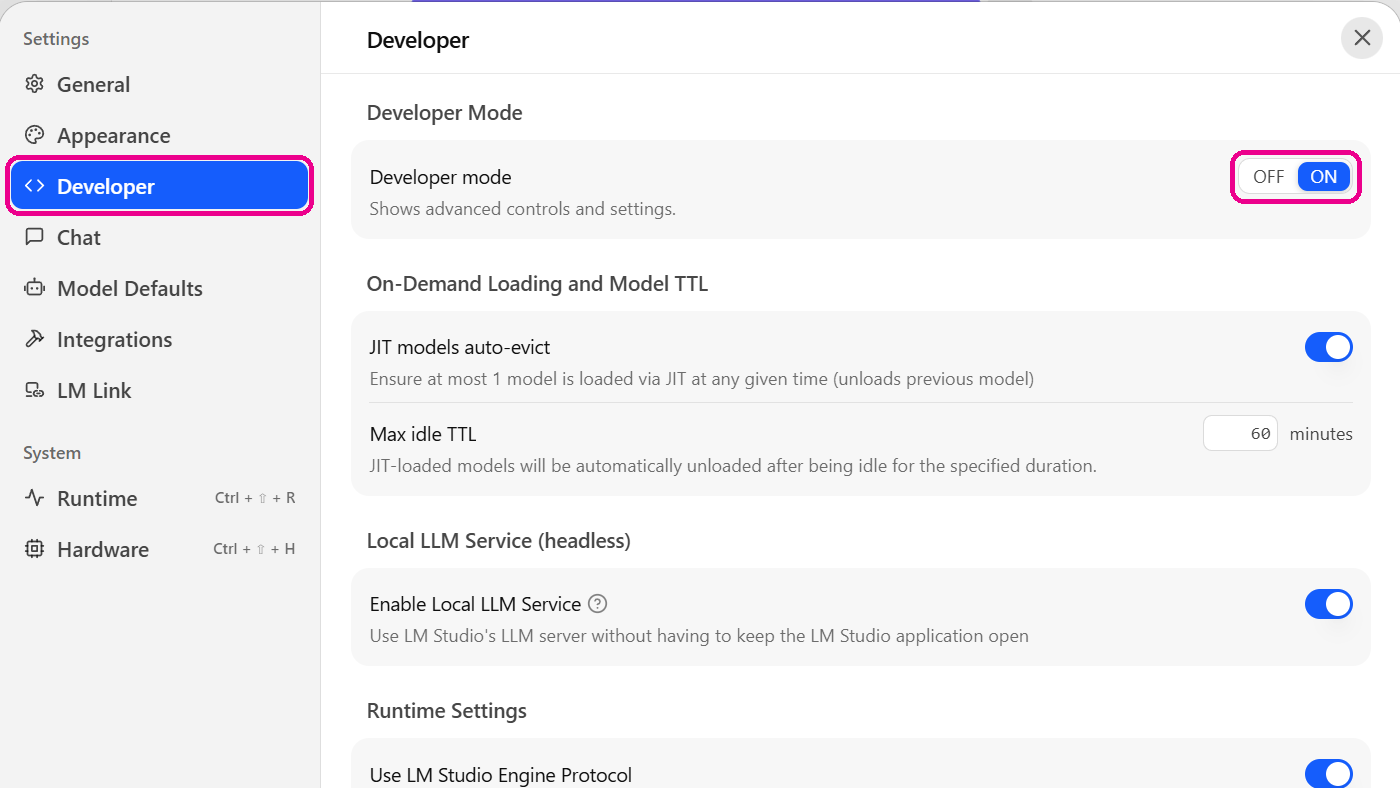
If the panel on the right is closed, open it with the button at the top right of the window. The developer mode is a setting of the program, not of a chat, so it stays on until you switch it off again.
The settings of a model
With the developer mode on, the panel on the right shows the settings for the model of the current chat. What they do, and why, is explained in Next-token prediction; here is only where to find them.
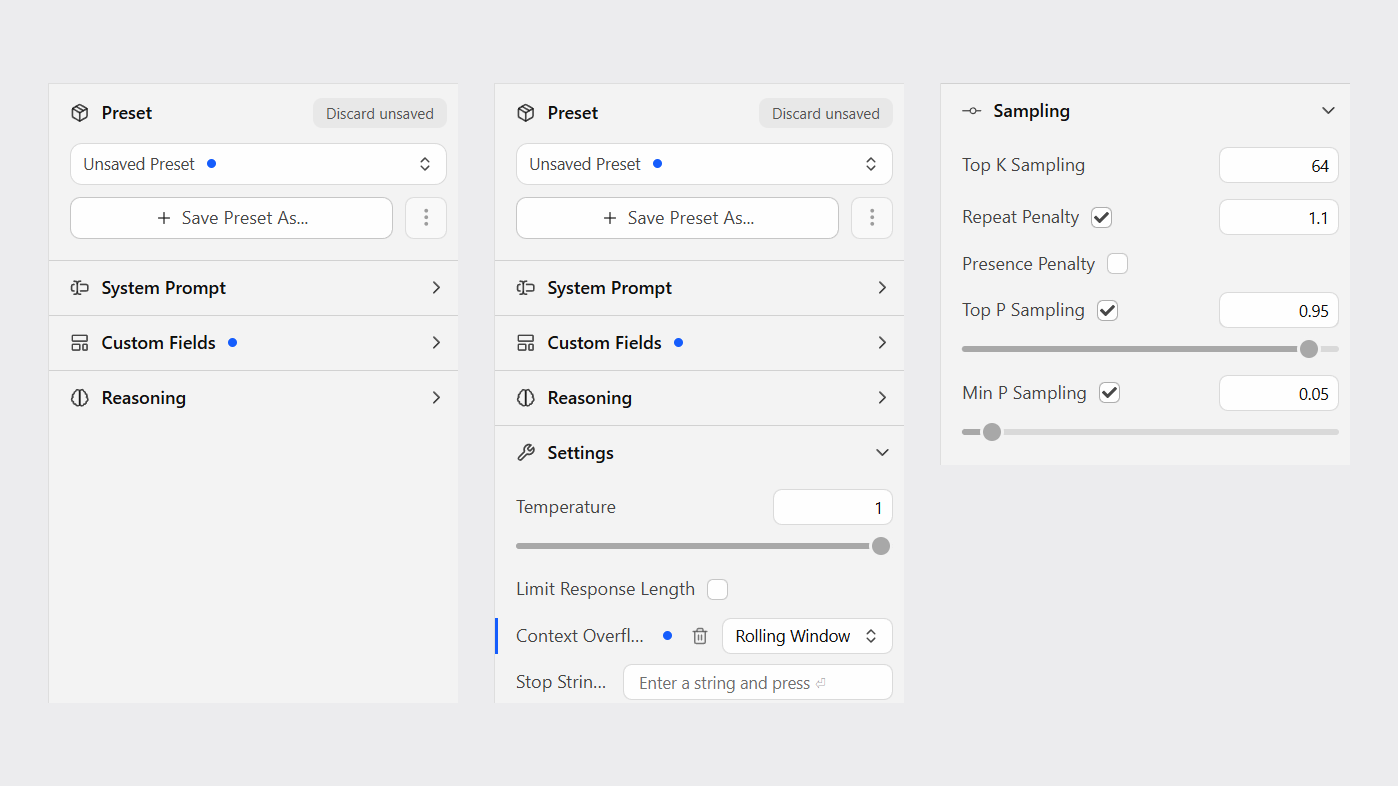
- Settings: Temperature, Limit Response Length with the maximum number of tokens of an answer, and Context Overflow with the strategies Rolling Window, Truncate Middle and Stop at Limit for a conversation that grows beyond the context.
- Sampling: Top K Sampling, Top P Sampling and Min P Sampling, each with a box that switches it on or off, and the penalties for repeated tokens.
A changed setting applies from the next answer on. LM Studio marks it as Unsaved Preset; with Save Preset As… you keep a combination of settings for later.
Context length and the model file
The length of the context is not set in the chat but when the model is loaded, because LM Studio reserves memory for it. Under Library, select the model and open the tab Load: Context Length shows the current value and the maximum the model supports. A change takes effect the next time the model is loaded.
The same list in Library leads to the model file: the menu … next to a model opens its folder with Open in File Explorer. The file there is the whole model, and its size depends on the number of parameters and on how many bits each of them is stored with.
Details
- Level
- Beginner
- Modules
- Applications of Artificial Intelligence
- License
- proprietary, free for use at home and at work
- Code
2032- Updated
- 5 November 2026
- Status
- published